Don't Reinstall ComfyUI: Update ComfyUI, SwarmUI, Models and Presets the Right Way (V147)
LongCat Avatar 1.6 turns one photo and one audio file into a lip-synced talking video on your own GPU; our 3-step preset runs 2.9x faster than 8 steps.
Published Oct 30, 2026 · 1,162 views · Watch on YouTube
Get the app and files

LongCat Avatar Tutorial: Turn Your Photo and Voice Into a Talking Video
LongCat Avatar 1.6 turns one photo and one audio file into a lip-synced talking video on your own GPU; our 3-step preset runs 2.9x faster than 8 steps.
ComfyUI Auto Installer: 1-Click Windows, Linux & Cloud With Presets
ComfyUI auto installer that sets up Sage Attention, Triton, xFormers and Flash Attention in one click, with ready presets for image, video and lip sync models.
SwarmUI Auto Installer & Ultimate Image and Video Model Downloader
SwarmUI auto installer with extensions plus a unified AI models downloader for SwarmUI, ComfyUI, Automatic1111 and Forge, with 105 ready SwarmUI presets.
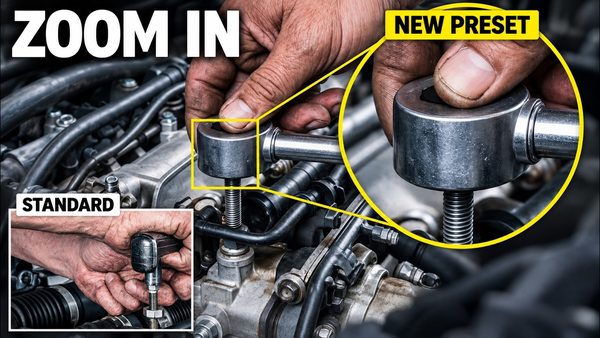
MiniMax H3 Image: New Preset Fixes Tiny-Detail Errors at 16 MP
MiniMax H3 Image gets a new text-to-image preset that draws small objects such as watch gears, gem settings and tools more correctly at 16 MP in 6 steps.
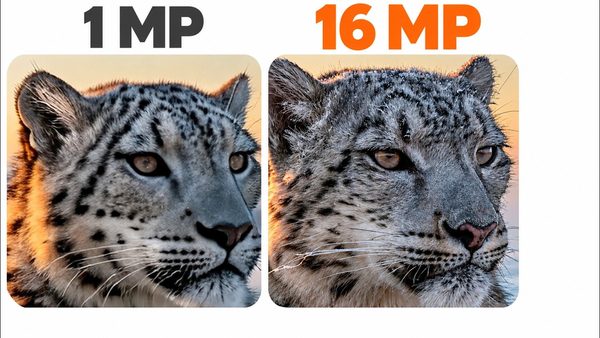
MiniMax H3 Image in ComfyUI: 16 MP Images and Edits in 6 Steps
MiniMax H3 Image is a new 33.1B model that generates and edits 16 MP pictures in 6 steps on your own GPU; our ComfyUI V150 ships two ready presets for it.
Chapters
- 0:00 Update ComfyUI, SwarmUI, models and presets
- 0:26 Download the latest zips (ComfyUI V147, SwarmUI v187)
- 0:55 Why ComfyUI goes first
- 1:07 Extract and overwrite everything
- 1:20 Run the ComfyUI update bat
- 1:38 Update the custom node bundles (100)
- 2:23 ComfyUI updated: the new presets
- 2:44 Update the model downloader (v187)
- 3:19 Download a model bundle (Anima Core)
- 3:35 ComfyUI-only users: set the models path
- 4:24 Update SwarmUI with one bat
- 4:48 Update the presets (94)
- 5:16 Keep your own presets when updating
- 6:02 Questions? Join our Discord
About this video
This short Windows tutorial updates everything in our AI stack the right way: our ComfyUI installer (V147), its custom node bundles, our SwarmUI model downloader (v187) and your models, SwarmUI itself with our extensions, and our SwarmUI presets (94 in the latest preset file). The order matters: SwarmUI runs on our ComfyUI backend, so ComfyUI goes first, then the model downloader and models, then SwarmUI, then the presets. ComfyUI-only users follow the same steps and set the ComfyUI models folder in the downloader.
Links:
ComfyUI installer, latest zip and changelog (our ComfyUI post): [ https://www.patreon.com/posts/105023709 ]
SwarmUI installer, model downloader and presets (our SwarmUI post): [ https://www.patreon.com/posts/114517862 ]
SwarmUI full tutorial (install and every feature): [ https://youtu.be/0HmIeeI1iBo ]
ComfyUI installation full tutorial: [ https://youtu.be/nxsCBTcCVp4 ]
One-time Windows requirements installer tutorial: [ https://youtu.be/ptuLL0C72Ms ]
SECourses Discord for questions: [ https://discord.com/invite/software-engineering-courses-secourses-772774097734074388 ]
You will learn how to download the latest zips from our posts, extract them over your existing folders and overwrite every file, run Windows_Install_Or_Update_ComfyUI.bat, update the custom node bundles with bundle 100, start the model downloader and pick the right models folder, download a model bundle, update SwarmUI with one bat file, refresh the presets with Windows_Preset_Delete_Import.bat, or import the preset file by hand to keep your own presets.
Main topics include updating ComfyUI V147 (Torch 2.13 + CUDA 13), the custom node bundles installer, the Unified AI Models Downloader v187 (36 bundles, 534 models, 13 sections), the ComfyUI folder structure, the Anima Core bundle, the SwarmUI updater and Amazing_SwarmUI_Presets_v86.json.
Use the chapters to jump to any update step.
Chapters:
0:00 Update ComfyUI, SwarmUI, models and presets
0:26 Download the latest zips (ComfyUI V147, SwarmUI v187)
0:55 Why ComfyUI goes first
1:07 Extract and overwrite everything
1:20 Run the ComfyUI update bat
1:38 Update the custom node bundles (100)
2:23 ComfyUI updated: the new presets
2:44 Update the model downloader (v187)
3:19 Download a model bundle (Anima Core)
3:35 ComfyUI-only users: set the models path
4:24 Update SwarmUI with one bat
4:48 Update the presets (94)
5:16 Keep your own presets when updating
6:02 Questions? Join our Discord
Step by step:
1. ComfyUI: download the latest ComfyUI zip, extract it into your existing ComfyUI folder and choose Replace the files in the destination. Run Windows_Install_Or_Update_ComfyUI.bat; it detects the existing installation and updates it. Then run Windows_Custom_Nodes_Bundles_Installer.bat, enter 100 and confirm, so the custom node bundles are updated too.
2. Models: extract the SwarmUI Model Downloader zip over the old one, overwrite all, start Windows_Start_Download_Models_App.bat and check the download path. With SwarmUI, download into the SwarmUI Models folder. ComfyUI only: paste the path of your ComfyUI models folder, select the ComfyUI folder structure and click Remember Settings. Download a bundle with one click; files you already have are verified, not downloaded again.
3. SwarmUI: run Windows_Install_Or_Update_SwarmUI.bat. It updates SwarmUI and our extensions, stages each update, rolls a failed one back and verifies every extension against the new build.
4. Presets: run Windows_Preset_Delete_Import.bat. It backs up your current presets, deletes them and imports the latest Amazing_SwarmUI_Presets file. Refresh the Presets tab.
Where to extract: the ComfyUI zip goes into your existing ComfyUI installation folder, the one with Windows_Install_Or_Update_ComfyUI.bat. The SwarmUI Model Downloader zip goes into the folder where you installed SwarmUI before, the one with Windows_Install_Or_Update_SwarmUI.bat. Windows Extract All and WinRAR both work; overwrite all files.
The newest presets in this update include Anima, AvatarForever, Krea 2, ERNIE Image, FastH3 Omni and Fibo 2.0. Their models come with the matching bundles of the model downloader.
Keep your own presets: click Import in the Presets tab, choose the latest Amazing_SwarmUI_Presets file and turn on Overwrite existing presets. Presets with the same names are updated and your differently named presets stay. To change one of ours, duplicate it from its menu and rename it, so later updates never overwrite it. Always extract and overwrite all files, so every part is the latest version.
This video is for anyone who uses our ComfyUI or SwarmUI installers and wants the newest models, presets and fixes without reinstalling.
Questions? Check the pinned comment, join our Discord (linked in every one of our posts), message me on Patreon or ask in the comments. Thank you for watching.