New MiniMax H3 Image Preset Makes Details Massively Better in ComfyUI and SwarmUI (16 MP)
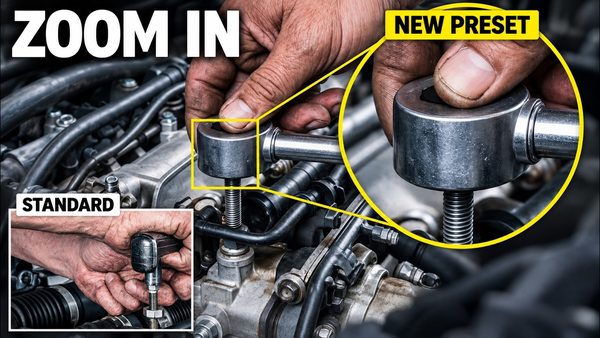
MiniMax H3 Image gets a new text-to-image preset that draws small objects such as watch gears, gem settings and tools more correctly at 16 MP in 6 steps.
Published Nov 15, 2026 · 1,550 views · Watch on YouTube
Get the app and files
MiniMax H3 Image: New Preset Fixes Tiny-Detail Errors at 16 MP
MiniMax H3 Image gets a new text-to-image preset that draws small objects such as watch gears, gem settings and tools more correctly at 16 MP in 6 steps.
Chapters
- 0:00 New preset fixes a jammed diamond setting at 16 MP
- 0:24 Small objects compared: watch gears, ratchet, sprockets, dishes
- 0:55 The trade-off: glossier, more plastic faces and rooms
- 1:06 Which preset to use for which image
- 1:31 ComfyUI: open the KJNodes Empty Image preset
- 1:51 The one new box: KJNodes empty black picture
- 2:07 Generate a watchmaker image with the new preset
- 2:52 Inspect the watch gears in the 16 MP result
- 3:05 SwarmUI: apply the new preset card
- 3:30 The KJNodes Empty Image switch in SwarmUI
- 3:40 Generate a jeweler image and zoom into the diamond
- 4:28 Recap: which preset for which image
About this video
MiniMax H3 Image makes 16 megapixel pictures in only 6 steps on your own NVIDIA GPU, and it now has a second text to image preset for small objects: "MiniMax H3 Image - Text To Image 16 MP - KJNodes Empty Image - 6 Steps - 261114". It ships ready beside the standard preset in our SECourses ComfyUI installer V152 and in Amazing SwarmUI Presets v90, and in SwarmUI it is one checkbox of our MiniMaxH3Image extension. On many images it draws small objects more correctly: gem settings, watch gears, tools, bike sprockets and plated dishes. The model, 16 MP, 6 steps and MiniMax's official prompt enhancer running locally stay the same. Faces and rooms often look glossier and more plastic with it, so the standard preset stays the choice for portraits and natural skin.
Links:
Download the ComfyUI installer zip V152 with the new KJNodes Empty Image preset (our ComfyUI post): [ https://www.patreon.com/posts/105023709 ]
SwarmUI Model Downloader v193 with Amazing SwarmUI Presets v90 and the new preset (our SwarmUI post): [ https://www.patreon.com/posts/114517862 ]
Full ComfyUI installation tutorial: [ https://youtu.be/nxsCBTcCVp4 ]
SwarmUI full tutorial: [ https://youtu.be/0HmIeeI1iBo ]
How to update ComfyUI, SwarmUI, models and presets: [ https://www.youtube.com/watch?v=sdD3--WbHZk ]
One-time Windows requirements installer tutorial: [ https://youtu.be/ptuLL0C72Ms ]
SECourses Discord: [ https://discord.com/invite/software-engineering-courses-secourses-772774097734074388 ]
You will learn which preset fits which picture, from same-caption, same-seed pairs: each comparison shows the whole 16 MP picture first and then zooms into the small part where the two presets differ. In ComfyUI you open the new preset from the Presets folder with Ctrl+O, see that the prompt box, output size, prompt enhancer and seed number match the standard preset, and find the one difference: the MiniMax H3 Prompt Weight node of KJNodes in "text with empty image" mode, which shows the model an empty black picture beside your text for the first quarter of the steps (2 of 6); the other 4 steps run on your text alone. Then you type a short idea, keep the enhancer on, click Run and look closely at the watch movement of the 16 MP result. In SwarmUI you filter the Presets tab for H3 Image, reset the parameters in Quick Tools, Direct Apply the new card and find its KJNodes Empty Image checkbox, which also works with your own settings. Finally you generate a jeweler at 16 MP and zoom into the ring.
Main topics include MiniMax H3 Image, KJNodes, ComfyUI and SwarmUI presets, text to image, small object detail, jewelry, watch and food images, the local prompt enhancer and 16 MP.
Use the chapters to jump to the comparisons, the ComfyUI steps or the SwarmUI steps.
Chapters:
0:00 New preset fixes a jammed diamond setting at 16 MP
0:24 Small objects compared: watch gears, ratchet, sprockets, dishes
0:55 The trade-off: glossier, more plastic faces and rooms
1:06 Which preset to use for which image
1:31 ComfyUI: open the KJNodes Empty Image preset
1:51 The one new box: KJNodes empty black picture
2:07 Generate a watchmaker image with the new preset
2:52 Inspect the watch gears in the 16 MP result
3:05 SwarmUI: apply the new preset card
3:30 The KJNodes Empty Image switch in SwarmUI
3:40 Generate a jeweler image and zoom into the diamond
4:28 Recap: which preset for which image
Method credit: the "text with empty image" mode of the MiniMax H3 Prompt Weight node in KJNodes by Kijai. We tested it against our standard preset on 40 same-caption, same-seed pairs at 16 MP and ship it as a second preset.
Music: Champion by Telecasted, Ghibli Station by The Mini Vandals, Curadora by Casa Rosa, Chat Roulette by Single Friend, Swing Haven 4 - Tulsa by Reed Mathis, Vespers by Topher Mohr and Alex Elena, On The Beach by Telecasted, TrueArtRealAffectionPart4 by Noir Et Blanc Vie.
Which preset when: the new preset when small objects carry the picture (watch movements, rings and gem settings, tools, sprockets, plated dishes); the standard preset for portraits, natural skin and interiors that should look like a photograph. For an important image, run both with the same prompt and keep the better one. The new preset is text to image only; for photo edits keep the Image Edit preset. No model yet? The MiniMax-H3 Core Bundle in the Model Downloader fetches every file; the Low VRAM Bundle needs less GPU memory.
This video is for ComfyUI and SwarmUI users who make product, jewelry, food and mechanism images with MiniMax H3 Image. New to ComfyUI or SwarmUI? Start with the full tutorials linked above; already installed, the update tutorial shows how to get the new presets.
For support, questions, feature requests or installation issues, see the pinned comment, our Patreon posts, our Discord and the video comments. Thank you for watching.