Forget ComfyUI's Complexity: This Tool Changes Everything
Ostris AI-Toolkit installs automatically on Windows, RunPod, SimplePod and Massed Compute and is now patched to train on custom single-file base models.
Published Oct 15, 2025 · 19,297 views · Watch on YouTube
Get the app and files

Ostris AI-Toolkit 1-Click Installers: LoRA Training on Windows & Cloud
Ostris AI-Toolkit installs automatically on Windows, RunPod, SimplePod and Massed Compute and is now patched to train on custom single-file base models.
Qwen Image Edit 2511 Tutorial: 12-Case Comparison With 2509
Qwen Image Edit 2511 is a free, open source image editor that challenges Nano Banana Pro, with native 2560x2560 output in 12 steps, even on 6 GB GPUs.
Wan 2.2 LoRA Training Tutorial: Text to Image & Video, Windows & Cloud
Wan 2.2 complete LoRA training tutorial with Musubi Tuner, based on over 64 trainings; the ready configs train locally on GPUs with as little as 6 GB VRAM.
Z-Image Turbo Tutorial: LoRA Training, ControlNet Union & Presets
Z-Image Turbo step by step: generate with ready SwarmUI presets, add Fun ControlNet Union and train LoRAs with Ostris AI Toolkit on GPUs from 6 GB.
Qwen Image Next Level Realism: LoRA Workflow Tutorial, 4+4 Steps
Qwen Image presets for SwarmUI with new realism LoRAs reach next level realism in only 4+4 steps; the full tutorial also covers inpainting and outpainting.
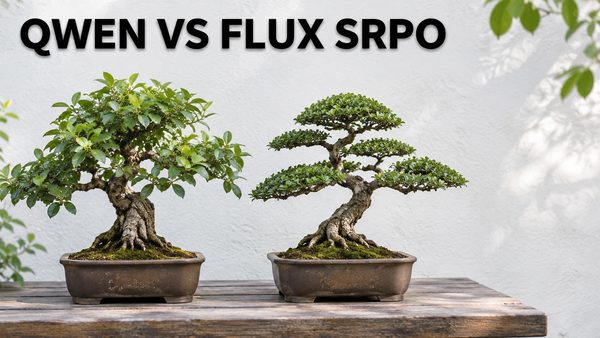
Qwen Image vs FLUX SRPO Training Comparison: 20 Images, Same Dataset
Qwen Image base model vs FLUX SRPO training on the same 28-image dataset: 20 side-by-side results show Qwen far ahead at complex prompts and emotions.
Chapters
- 0:00 Introduction to State-of-the-Art Local Image Generation
- 0:50 Why SwarmUI is the Best UI for Image Generation
- 1:28 Showcase of Incredible AI Images Generated Locally
- 2:22 Live Demonstration: Generating an Image in SwarmUI
- 3:24 Generating a Hyper-Realistic Image with the Wan 2.2 Model
- 4:05 How to Upscale and Add Incredible Detail to Your Images
- 4:44 SwarmUI's Automatic Hardware Optimizations (VRAM/RAM)
- 6:01 Part 1: The Ultimate One-Click Installation Guide Begins
- 6:43 Step 1.1: Fresh Installation of ComfyUI with Custom Installer
- 7:42 Step 1.2: How to Easily Update Your Existing ComfyUI
- 8:59 Step 2.1: Installing the SwarmUI Frontend
- 9:32 Step 2.2: CRITICAL SwarmUI Configuration Steps
- 10:11 Step 2.3: Connecting Your Powerful ComfyUI as the Backend
- 11:21 Advanced Setup: Using Multiple GPUs in SwarmUI
- 12:35 Step 2.4: Installing and Importing All The Custom Presets
- 13:44 Step 3.1: Downloading All Models with the Custom Downloader App
- 14:42 Step 3.2: Using the Image Generation & Editing Model Bundle
- 16:03 Model Downloader Features: High-Speed & Resume Capability
- 16:36 Step 3.3: How to Download Any Model from a URL (Civitai/HuggingFace)
- 17:48 Part 2: Using Presets & Models for Different Styles
- 18:01 Important Tip: Resetting Parameters Before Using Presets
- 18:40 Testing the Wan 2.2 Preset for Ultimate Photorealism
- 19:23 Testing the Flux SRPO Preset for High-Quality Realism
- 20:26 Upscaling the Flux SRPO Image to Maximize Detail
- 21:29 Creating Stylized Art with the QWEN Model Preset
- 22:08 Part 3: Advanced Image Editing with QWEN Image Edit Plus
- 22:23 Step-by-Step Guide to In-Painting and Image Editing
- 24:40 Image Editing Example: Changing Hair Color with a Simple Prompt
- 25:28 Conclusion, How to Find Your Generated Images, and Final Tips
- 25:51 Finding Your Saved Images and Using the Image History Tab
About this video
🎨 Stop struggling with complex AI image generation! In this tutorial, I reveal the ultimate, one-click solution to creating stunning, photorealistic, and stylized AI art LOCALLY on your own computer—for FREE.
🔗 LINKS & RESOURCES MENTIONED
Step 1: My Custom ComfyUI One-Click Installer
[➡️ https://www.patreon.com/posts/105023709 ]
Step 2: My Custom SwarmUI Installer & Presets Pack
[➡️ https://www.patreon.com/posts/114517862 ]
Windows Requirements Tutorial (MANDATORY for first-time setup!)
[➡️https://youtu.be/DrhUHnYfwC0 ]
Cloud GPU Tutorials (for users without a powerful local GPU)
RunPod Tutorial: [➡️ https://youtu.be/R02kPf9Y3_w ]
MassCompute Tutorial: [➡️ https://youtu.be/8cMIwS9qo4M ]
Tired of confusing workflows, endless command lines, and expensive subscriptions? Forget everything you know about Stable Diffusion and ComfyUI's complexity. I'm introducing you to SwarmUI, the revolutionary tool that leverages the power of ComfyUI's backend with an incredibly simple, user-friendly interface.
This isn't just another AI tutorial. This is a complete, all-in-one guide that takes you from ZERO to AI Art PRO in minutes. I provide a one-click installer that sets up everything you need, including pre-configured presets for achieving breathtaking realism and incredible stylization.
🔥 In This Video, You Will Discover:
The Easiest AI Art Install Ever: A step-by-step guide using my custom one-click installer for ComfyUI and SwarmUI. No coding or tech skills required!
Unlock Top-Tier Realism: Learn how to use my secret presets to generate images so realistic, you won't believe they were made on your local PC.
Master Image Editing & Upscaling: Go beyond simple generation. I'll show you how to edit images with simple text commands and upscale them to glorious 4K/8K quality.
The Secret to Speed: See how this setup optimizes performance for your specific GPU, whether you have a high-end or mid-range card.
Say Goodbye to Subscriptions: Learn how to harness the full power of state-of-the-art AI models without ever paying a monthly fee again.
This is the new standard for local AI image generation. Whether you're a complete beginner or an experienced artist, this video will change your entire workflow. It's time to unleash the full creative power of your computer.
⏰ TIMESTAMPS / CHAPTERS
0:00 Introduction to State-of-the-Art Local Image Generation
0:50 Why SwarmUI is the Best UI for Image Generation
1:28 Showcase of Incredible AI Images Generated Locally
2:22 Live Demonstration: Generating an Image in SwarmUI
3:24 Generating a Hyper-Realistic Image with the Wan 2.2 Model
4:05 How to Upscale and Add Incredible Detail to Your Images
4:44 SwarmUI's Automatic Hardware Optimizations (VRAM/RAM)
6:01 Part 1: The Ultimate One-Click Installation Guide Begins
6:43 Step 1.1: Fresh Installation of ComfyUI with Custom Installer
7:42 Step 1.2: How to Easily Update Your Existing ComfyUI
8:59 Step 2.1: Installing the SwarmUI Frontend
9:32 Step 2.2: CRITICAL SwarmUI Configuration Steps
10:11 Step 2.3: Connecting Your Powerful ComfyUI as the Backend
11:21 Advanced Setup: Using Multiple GPUs in SwarmUI
12:35 Step 2.4: Installing and Importing All The Custom Presets
13:44 Step 3.1: Downloading All Models with the Custom Downloader App
14:42 Step 3.2: Using the Image Generation & Editing Model Bundle
16:03 Model Downloader Features: High-Speed & Resume Capability
16:36 Step 3.3: How to Download Any Model from a URL (Civitai/HuggingFace)