ComfyUI Too Hard? Make AI Images and Videos Locally With SwarmUI (1-Click Install, 2025)
Qwen Image Edit full tutorial with 26 different demo cases, from photo restoration and text changes to stylization, object removal and outpainting in SwarmUI.
Published May 04, 2025 · 31,915 views · Watch on YouTube
Get the app and files

Qwen Image Edit Full Tutorial: 26 Demo Cases, Prompts & Images
Qwen Image Edit full tutorial with 26 different demo cases, from photo restoration and text changes to stylization, object removal and outpainting in SwarmUI.
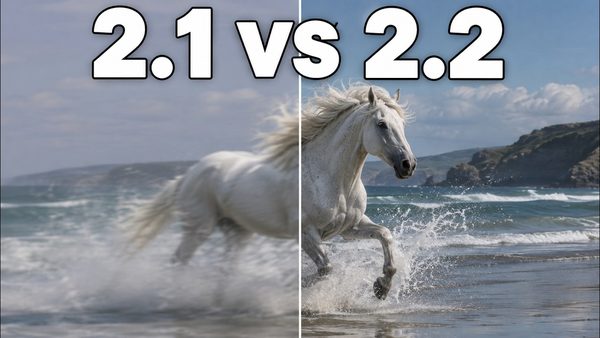
Wan 2.2, FLUX Krea & Qwen Image Upgraded: Fast 8-Step Presets Tutorial
Wan 2.2, Qwen Image, FLUX and FLUX Krea get new SwarmUI presets after a week of research, and new 8-step LoRAs make Wan 2.2 video and Qwen Image fast.
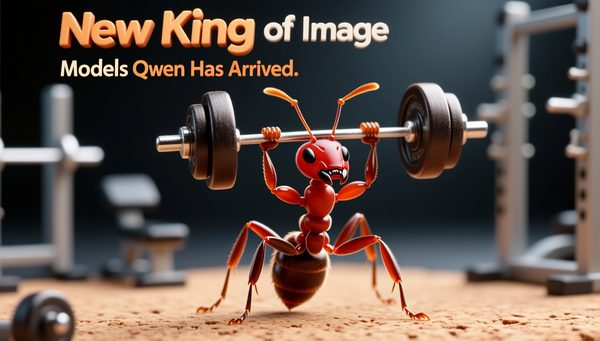
Qwen Image Showcase: Complex Prompts & Text Rendering for Thumbnails
Qwen Image, free and open source, is unchallenged at complex prompts and text on images; these raw SwarmUI thumbnails used Gemini 2.5 Pro prompts.

Wan 2.2 & FLUX Krea Full Tutorial: 1-Click Install & SwarmUI Presets
Wan 2.2 and FLUX Krea Dev in SwarmUI with a ComfyUI backend, using ready presets built from hundreds of parameter tests for videos from text or images.
Wan Prompt Guide: How to Prompt Wan Models (Full Tutorial)
Wan video prompting guide: the basic formula (subject, scene, motion), the advanced formula with aesthetic control and stylization, and prompt examples.
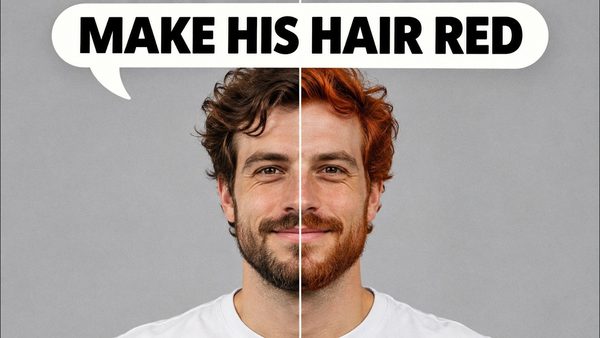
FLUX Kontext Dev Tutorial: Local Image Editing on Windows
FLUX Kontext Dev edits any part of an image with just a prompt, no mask or ControlNet, and can restore, colorize, outpaint and combine images in SwarmUI.
Chapters
- 0:00 Introduction: Fastest Local Image & Video Generation with SwarmUI on Windows
- 0:38 Leveraging ComfyUI Performance & Sage Attention Speed Boost in SwarmUI
- 1:07 Introducing the Custom Unified Model Downloader Application
- 1:50 Overview of Supported Models (SD, Video, Text Encoders, GGUF, VAE etc.)
- 2:50 Why Manually Installed ComfyUI Backend is Better for SwarmUI Performance
- 3:07 Live Demo Preview: High Dream GGUF Image Generation on Dual GPUs (RTX 5090 + 3090 Ti)
- 3:52 Tutorial Start: Overview of Installers (SwarmUI, Model Downloader, ComfyUI)
- 4:20 Step 1: Downloading the SwarmUI Model Downloader Installer Zip
- 4:33 Step 2: Downloading the Manual ComfyUI Backend Installer
- 4:52 Step 3: Extracting ComfyUI Installer for Backend Setup
- 5:05 Step 4: Running ComfyUI Backend Installation (windows_install.bat)
- 5:33 Configuring ComfyUI Install: Python Version & Attention Mechanisms (Flash/Sage)
- 6:18 Step 5: Starting SwarmUI Frontend Installation (Parallel to ComfyUI)
- 6:40 Configuring SwarmUI Installation Options (Theme, Custom Settings)
- 6:54 CRUCIAL STEP: Selecting "None" for ComfyUI Backend during SwarmUI Setup
- 7:21 Step 6: Adding the Manually Installed ComfyUI Backend in SwarmUI Settings
- 7:43 Configuring Backend Path (main.py) & Enabling Sage Attention (--use-sage-attention)
- 8:28 Monitoring Backend Dependency Installation & VENV Explanation
- 9:17 Step 7: Adding a Second ComfyUI Backend for Multi-GPU Usage (GPU ID 1)
- 10:00 Step 8: Launching & Setting Up the Unified Model Downloader App
- 10:50 Using the Model Downloader: Downloading Flux Models Bundle Example
- 11:14 Understanding Downloader Speed (HF Transfer) & Progress Monitoring
- 11:50 Downloader Features: Queue System & No Re-Downloads (Wan 2.1 Example)
- 12:20 Accessing 'How-to-Use' Links for Models within the Downloader
- 13:22 Step 9: Starting SwarmUI & Refreshing Models After Downloading
- 14:08 First-Time GGUF Model Load: Installing GGUF Support Extension in SwarmUI
- 14:32 Manually Setting Model Metadata (Architecture) if Needed (HiDream Example)
- 14:48 Detailed GGUF Support Installation Walkthrough & Backend Restart
- 15:51 Ignoring C Link Fatal Error on Windows
- 16:23 Usage Demo: Generating Image with Custom Flux DreamBooth Model
- 16:41 Configuring Generation Parameters (Prompt, Steps, Sampler, CFG, Guidance)
- 17:07 Initiating Generation & Monitoring Model Loading on GPUs
- 17:50 Troubleshooting Face Inpainting & Downloading YOLO Models via Downloader
- 18:31 Advanced Feature Demo: Using the Refine Upscale Option
- 18:43 Configuring Upscale Settings (Refiner %, Upscaler Model)
- 19:19 Running Generation with Upscaling & Performance Considerations
- 19:40 Comparing Results: Original vs. High-Quality Upscaled Image Detail
- 19:52 Fine-tuning Face Inpainting: Adjusting Mask Parameters (Blur/Grow)
- 20:23 Conclusion & Where to Find Links and Ask Questions
About this video
If you want to generate the very best AI videos and images on your Windows computer locally this is the tutorial that you were looking for. Literally 1-click to install most powerful and advanced generative AI interface SwarmUI (with Flash Attention, Sage Attention, Triton, DeepSpeed, xFormers, RTX 5000 series perfect compatibility) and download the very best AI image and video generation models with ultra advanced model downloader Gradio app. SwarmUI utilizes the famous and most powerful, advanced, performant and optimized ComfyUI as a backend. So SwarmUI is the ultimate generative AI tool at the moment with vast amount of features and constant updates.
🔗Follow below link to download the zip file that contains SwarmUI installer and AI models downloader Gradio App - the one used in the tutorial ⤵️
▶️ https://www.patreon.com/posts/SwarmUI-Installer-AI-Videos-Downloader-114517862
🔗Follow below link to download the zip file that contains ComfyUI 1-click installer that has all the Flash Attention, Sage Attention, xFormers, Triton, DeepSpeed, RTX 5000 series support ⤵️
▶️ https://www.patreon.com/posts/Advanced-ComfyUI-1-Click-Installer-105023709
🔗 Python, Git, CUDA, C++, FFMPEG, MSVC installation tutorial - needed for ComfyUI ⤵️
▶️ https://youtu.be/DrhUHnYfwC0
🔗 SECourses Official Discord 10500+ Members ⤵️
▶️ https://discord.com/servers/software-engineering-courses-secourses-772774097734074388
🔗 Stable Diffusion, FLUX, Generative AI Tutorials and Resources GitHub ⤵️
▶️ https://github.com/FurkanGozukara/Stable-Diffusion
🔗 SECourses Official Reddit - Stay Subscribed To Learn All The News and More ⤵️
▶️ https://www.reddit.com/r/SECourses/
This tutorial will show you how to install ComfyUI properly into a VENV with 1-click our installers, then install SwarmUI instantly and then how to give propoerly installed ComfyUI as a backend to the SwarmUI and generate AI images and videos with maximum speed and quality. Moreover, this tutorial will introduce you ultimate AI model downloader Gradio app being developed by us.
0:00 Introduction: Fastest Local Image & Video Generation with SwarmUI on Windows
0:38 Leveraging ComfyUI Performance & Sage Attention Speed Boost in SwarmUI
1:07 Introducing the Custom Unified Model Downloader Application
1:50 Overview of Supported Models (SD, Video, Text Encoders, GGUF, VAE etc.)
2:50 Why Manually Installed ComfyUI Backend is Better for SwarmUI Performance
3:07 Live Demo Preview: High Dream GGUF Image Generation on Dual GPUs (RTX 5090 + 3090 Ti)
3:52 Tutorial Start: Overview of Installers (SwarmUI, Model Downloader, ComfyUI)
4:20 Step 1: Downloading the SwarmUI Model Downloader Installer Zip
4:33 Step 2: Downloading the Manual ComfyUI Backend Installer
4:52 Step 3: Extracting ComfyUI Installer for Backend Setup
5:05 Step 4: Running ComfyUI Backend Installation (windows_install.bat)
5:33 Configuring ComfyUI Install: Python Version & Attention Mechanisms (Flash/Sage)
6:18 Step 5: Starting SwarmUI Frontend Installation (Parallel to ComfyUI)
6:40 Configuring SwarmUI Installation Options (Theme, Custom Settings)
6:54 CRUCIAL STEP: Selecting "None" for ComfyUI Backend during SwarmUI Setup
7:21 Step 6: Adding the Manually Installed ComfyUI Backend in SwarmUI Settings
7:43 Configuring Backend Path (main.py) & Enabling Sage Attention (--use-sage-attention)
8:28 Monitoring Backend Dependency Installation & VENV Explanation
9:17 Step 7: Adding a Second ComfyUI Backend for Multi-GPU Usage (GPU ID 1)
10:00 Step 8: Launching & Setting Up the Unified Model Downloader App
10:50 Using the Model Downloader: Downloading Flux Models Bundle Example
11:14 Understanding Downloader Speed (HF Transfer) & Progress Monitoring
11:50 Downloader Features: Queue System & No Re-Downloads (Wan 2.1 Example)
12:20 Accessing 'How-to-Use' Links for Models within the Downloader
13:22 Step 9: Starting SwarmUI & Refreshing Models After Downloading
14:08 First-Time GGUF Model Load: Installing GGUF Support Extension in SwarmUI