Turn Any Video Into Subtitles in Seconds on Your PC: Whisper-WebUI Premium Windows Guide
Whisper-WebUI Premium turns video and audio into subtitles and transcripts on Windows; this full guide covers 3 engines, 6 export formats and batch folders.
Published Sep 30, 2026 · 1,173 views · Watch on YouTube
Get the app and files
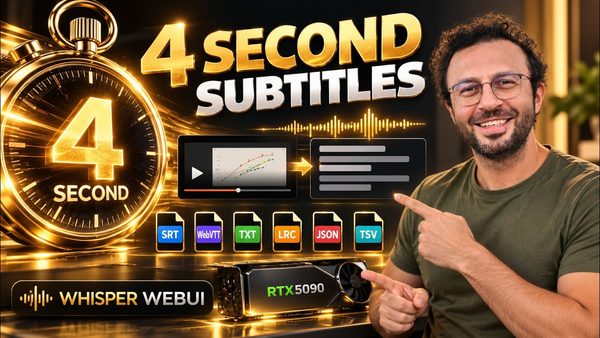
Whisper-WebUI Premium Guide: Transcribe 10 Minutes in 4 Seconds
Whisper-WebUI Premium turns video and audio into subtitles and transcripts on Windows; this full guide covers 3 engines, 6 export formats and batch folders.

Whisper-WebUI Premium: Fast Speech to Text Transcription App, 1-Click
Whisper-WebUI Premium turns video or audio into subtitles in 100 languages; its INT8 engine transcribed a 1 hour 29 minute lecture in 32 seconds.
Chapters
- 0:00 A ten-minute video subtitled in four seconds
- 1:09 See the transcript and choose the right exports
- 1:48 Download the ZIP and check Windows requirements
- 2:43 Move and extract the complete installer package
- 3:32 Fresh Windows installation with the BAT installer
- 4:46 Launch the app and make your first subtitles
- 7:10 Three engines and the long lecture result
- 9:20 Save and reload your own working preset
- 10:34 Useful advanced controls without rebuilding your setup
- 15:24 Music removal, voice detection and speaker labels
- 17:35 Transcribe nested folders and reuse finished outputs
- 19:10 Video links and whole-channel processing
- 20:16 Live preview and record-then-generate microphone modes
- 21:53 Translate subtitles and preserve their timings
- 23:10 Save separate voice and instrumental audio tracks
- 23:59 Updates, cloud support and the complete workflow
About this video
Whisper-WebUI Premium turns video and audio into subtitles, searchable transcripts and timed data on your own Windows PC. See a real 10-minute recording transcribed in 4 seconds, then follow the complete fresh installation and every main workflow. This tutorial covers all 3 engines, researched quality presets, automatic model downloads, 6 export formats, custom vocabulary, folder batches, YouTube sources, microphone recording, speaker labels, subtitle translation and voice/music separation.
Links:
Download Whisper-WebUI Premium and read the full feature guide: [ https://www.patreon.com/SECourses/posts/whisper-webui-to-145395299 ]
Windows Requirements tutorial: [ https://youtu.be/DrhUHnYfwC0 ]
You will learn how to download the latest ZIP, locate it in Chrome, move it to a permanent folder and extract the whole package. Read the Windows Requirements section and follow its linked setup tutorial first if needed. Use an English-character path without spaces, such as G:\whisper_tutorial. Run the Windows installer and app starter by double-clicking their BAT files or selecting them and pressing Enter; never run them as administrator. Keep the start window open while using the local browser interface. We then load a video by upload or full file path, choose a language and output formats, generate the first subtitles, and inspect the saved files and transcript. Use SRT for conventional video subtitles, WebVTT for compatible web players, and TXT for searching or rewriting the transcript. LRC, JSON and TSV keep timed information for other tools. Select several formats in the same run and inspect matching filenames in the outputs folder.
Main topics include multilingual Whisper and optimized models, Canary-Qwen for English speech, Insanely Fast Whisper, GPU-aware presets, INT8 ConvRot, PyTorch 2.13 and CUDA 13 precompiled packages. Save your own preset with vocabulary, reload its settings, reset engine defaults or delete a user preset. Inspect compute precision, beam search, prompts and hotwords, repetition and silence controls, batch size, model offloading, word timestamps and subtitle punctuation. See a long lecture result and stop a separate worker with Cancel Generation. The filter demonstrations cover background music removal, Silero voice detection and diarization for a two-man conversation. Batch Processing scans nested input folders, mirrors their structure in a separate output folder, skips existing results and offers deliberate overwrite. The YouTube tab reads a video link or processes recent videos from a channel. Live Mic previews incoming text; Record Then Generate creates subtitles after recording. Local NLLB translates an English SRT to Spanish while preserving all 10 cue timings and speaker labels; the DeepL API controls provide another route with your own key. BGM Separation saves individual voice and instrumental tracks. SRT, WebVTT, TXT, LRC, JSON and TSV can be selected together and downloaded in one ZIP. Finally, switch themes, open or close the settings panels, and follow the package update route.
Use the chapters to follow the fresh Windows install or jump straight to engines, presets, batch folders, speaker labels, microphone modes, translation and audio separation.
Chapters:
0:00 A ten-minute video subtitled in four seconds
1:09 See the transcript and choose the right exports
1:48 Download the ZIP and check Windows requirements
2:43 Move and extract the complete installer package
3:32 Fresh Windows installation with the BAT installer
4:46 Launch the app and make your first subtitles
7:10 Three engines and the long lecture result
9:20 Save and reload your own working preset
10:34 Useful advanced controls without rebuilding your setup
15:24 Music removal, voice detection and speaker labels
17:35 Transcribe nested folders and reuse finished outputs
19:10 Video links and whole-channel processing
20:16 Live preview and record-then-generate microphone modes
21:53 Translate subtitles and preserve their timings
23:10 Save separate voice and instrumental audio tracks
23:59 Updates, cloud support and the complete workflow
The opening result is a 10-minute 56-second recording completed in 4 seconds on an RTX 5090, using the Canary Qwen Best Quality preset, batch size 16 and the optimized Canary INT8 ConvRot model with the model and caches ready. The app reports the elapsed time and result on screen.
The package also supports RunPod, SimplePod and Massed Compute for cloud GPU workflows. This video teaches Windows installation and use; the included platform instructions cover those cloud routes.
Read the linked post for release notes, illustrated feature explanations and current downloads. The app link is also in the pinned comment. For questions, installation support, feature requests and feedback, use the post and video comments.