Edit Any Photo Just by Typing: Qwen Image Edit Tested on 26 Real Cases
Nano Banana image editing tested live in 27 unique cases against the free, local Qwen Image Edit, with every prompt, image and result shown in the tutorial.
Published Aug 22, 2025 · 15,975 views · Watch on YouTube
Get the app and files
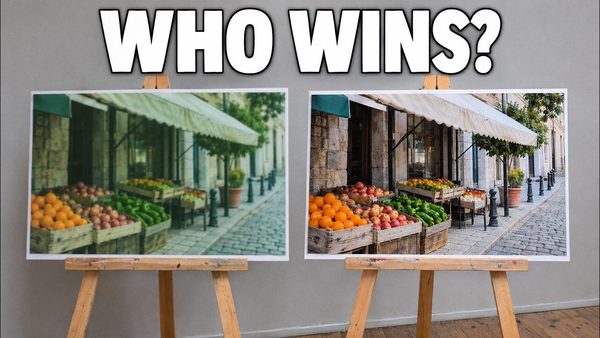
Nano Banana (Gemini 2.5 Flash Image) vs Qwen Image Edit: Full Tutorial
Nano Banana image editing tested live in 27 unique cases against the free, local Qwen Image Edit, with every prompt, image and result shown in the tutorial.
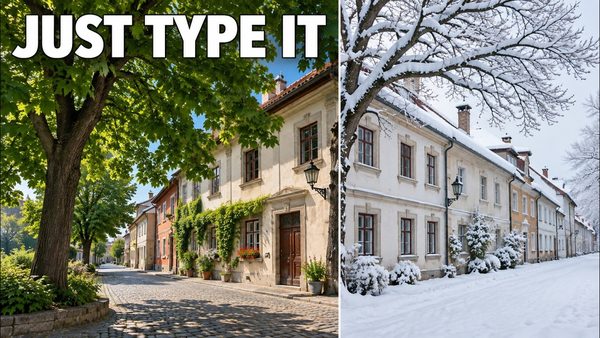
Qwen Image Edit Full Tutorial: 26 Demo Cases, Prompts & Images
Qwen Image Edit full tutorial with 26 different demo cases, from photo restoration and text changes to stylization, object removal and outpainting in SwarmUI.
Chapters
- 0:00 Introduction to the Qwen Image Edit Model & Tutorial Overview
- 0:32 Demo 1: Next-Level AI Photo Restoration
- 1:04 Demo 2: Changing Text on Existing Images
- 1:22 Demo 3: Image Stylization (Pixel Art, Cartoon, Pixar, 3D Render)
- 2:21 Demo 4: Changing Object Materials (Wood to Marble)
- 2:41 Demo 5: Generating High-Quality Logos from a Blank Canvas
- 3:39 Demo 6: Generating Images with High-Quality Text
- 3:57 Demo 7: Adding Realistic Objects to a Scene (Lion)
- 4:21 Demo 8: Removing Objects from an Image
- 4:46 Demo 9: Replacing People with Characters (Iron Man)
- 5:25 Demo 10: Adding Accessories to People (Hat)
- 5:44 Demo 11: Extracting Clothing from an Image
- 6:03 Demo 12: Rotating Subjects to Different Angles
- 6:37 Demo 13: Anime & Ghibli Stylization
- 7:11 Demo 14: Background Removal & Replacement
- 7:30 Demo 15: Image Expansion (Outpainting)
- 7:47 Demo 16 (Limitation): Modifying Facial Expressions
- 8:16 Demo 18: Changing Clothing (T-Shirt to Suit)
- 8:34 Demo 19: Changing the Season (Summer to Winter)
- 9:08 Demo 21: Keeping Text While Changing Background & Style
- 10:01 Demo 22: Advanced Text & Background Styling for Thumbnails
- 10:42 Demo 24: Colorizing & Shading Rough Sketches
- 11:07 Demo 25: Rendering Professional & Technical Sketches
- 11:37 Demo 26: Converting Real Photos into Professional Sketches
- 12:04 Installation Guide: Required Downloads & Initial Setup
- 12:50 Step 1: Updating ComfyUI & SwarmUI
- 13:28 Step 2: Importing the Latest Presets (Clean Import Method)
- 14:21 Step 3: Downloading the Qwen Image Edit Models
- 14:44 How to Select Low VRAM Models (GGUF Quantizations)
- 15:46 Troubleshooting: How to Fix Black Image Outputs
- 16:52 How to Use: Applying the Preset & Verifying Model Architecture
- 18:20 Workflow: Using a Prompt Image (No Init Image)
- 19:22 CRITICAL STEP: Matching Output Resolution to Input Image
- 20:00 Tutorial: How to Perfectly Resize Images with Paint.net
- 21:39 Running Your First Generation & Checking Progress
- 22:54 How to Upscale Your Generations
- 23:45 When to Use (and Not Use) the Upscaler
- 26:03 Generating Images from a Blank Canvas (No Input Image)
- 28:36 Comparing Upscaled vs. Original Generations
- 30:00 For Best Realism: Use the SUPIR Upscaler
- 31:11 Coming Soon: Qwen Image Edit LoRA Training Application
- 32:14 Final Resources & Where to Get Help
About this video
Qwen Image Edit just has been published and since then I have been experimenting to prepare you this amazing tutorial. I have literally shown 26 unique cases and provided demo images and prompts. After watching this tutorial your image editing skills will move to next level i promise you that. Also this tutorial will give you a lot of ideas.
Prompts, Demo images, Models downloader, SwarmUI installer and Presets : https://www.patreon.com/posts/114517862
ComfyUI backend installer : https://www.patreon.com/posts/105023709
Image and Video comparison sliders : https://www.patreon.com/posts/133935178
How to install ComfyUI and SwarmUI main tutorial : https://youtu.be/fTzlQ0tjxj0
Massed Compute SwarmUI & ComfyUI tutorial : https://youtu.be/8cMIwS9qo4M
Massed Compute is recommend cloud service
RunPod SwarmUI & ComfyUI tutorial : https://youtu.be/R02kPf9Y3_w
SECourses Discord (11k+ members) : https://discord.com/servers/software-engineering-courses-secourses-772774097734074388
SECourses Reddit (6k+ members) : https://www.reddit.com/r/SECourses/
Video Chapters
0:00 Introduction to the Qwen Image Edit Model & Tutorial Overview
0:32 Demo 1: Next-Level AI Photo Restoration
1:04 Demo 2: Changing Text on Existing Images
1:22 Demo 3: Image Stylization (Pixel Art, Cartoon, Pixar, 3D Render)
2:21 Demo 4: Changing Object Materials (Wood to Marble)
2:41 Demo 5: Generating High-Quality Logos from a Blank Canvas
3:39 Demo 6: Generating Images with High-Quality Text
3:57 Demo 7: Adding Realistic Objects to a Scene (Lion)
4:21 Demo 8: Removing Objects from an Image
4:46 Demo 9: Replacing People with Characters (Iron Man)
5:25 Demo 10: Adding Accessories to People (Hat)
5:44 Demo 11: Extracting Clothing from an Image
6:03 Demo 12: Rotating Subjects to Different Angles
6:37 Demo 13: Anime & Ghibli Stylization
7:11 Demo 14: Background Removal & Replacement
7:30 Demo 15: Image Expansion (Outpainting)
7:47 Demo 16 (Limitation): Modifying Facial Expressions
8:16 Demo 18: Changing Clothing (T-Shirt to Suit)
8:34 Demo 19: Changing the Season (Summer to Winter)
9:08 Demo 21: Keeping Text While Changing Background & Style
10:01 Demo 22: Advanced Text & Background Styling for Thumbnails
10:42 Demo 24: Colorizing & Shading Rough Sketches
11:07 Demo 25: Rendering Professional & Technical Sketches
11:37 Demo 26: Converting Real Photos into Professional Sketches
12:04 Installation Guide: Required Downloads & Initial Setup
12:50 Step 1: Updating ComfyUI & SwarmUI
13:28 Step 2: Importing the Latest Presets (Clean Import Method)
14:21 Step 3: Downloading the Qwen Image Edit Models
14:44 How to Select Low VRAM Models (GGUF Quantizations)